
Spydus Library FAQs

Handy hints for using the Spydus Library app.

With the Spydus Library app, you can:

  • View and renew your current loans
  • Manage your reservations and keep track of due dates
  • Use your phone as a digital library card
  • Save lists of your favourite reads for later
  • Scan a book’s ISBN to check if it’s in the collection
  • Receive handy library notifications and reminders
  • Manage multiple library accounts (perfect for families)


Whether you’re reserving a book on the go, checking due dates at a glance, or finding your next read, the app puts the full library experience at your fingertips. Just scan your digital barcode at the kiosk – no physical card needed!

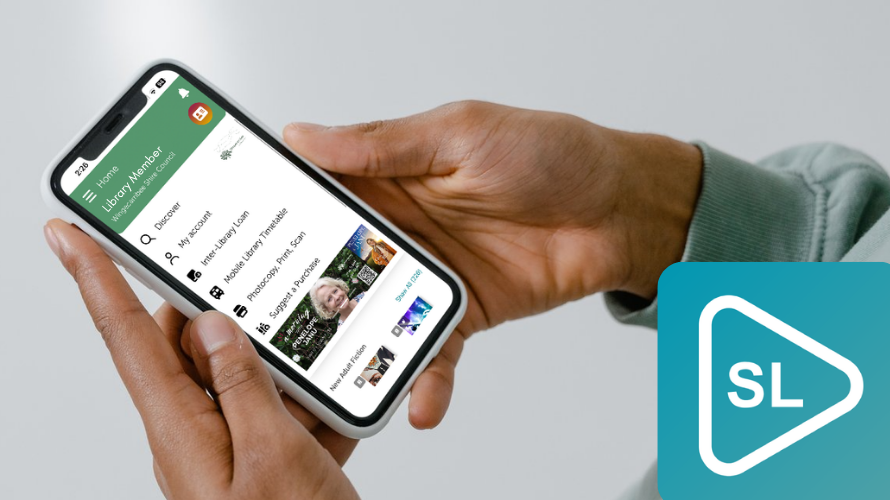
Person holding a phone with Spydus Library open.
  1. Download the Spydus app
  2. Search for and select Wingecarribee Shire Council
  3. Log in using your library card number and 4-digit PIN
  4. Choose whether to enable notifications


Once logged in, you’ll stay signed in unless you choose to log out.

Get Spydus Library on Google Play for Android phones and tablets.
Download Spydus Library on the App Store for iPhone, iPad, or iPod.

Searching in the app

  1. Open the Spydus Library app and select discover
  2. Enter the title, author or subject you’re looking for
  3. View the item in the catalogue


Searching by ISBN

  1. Select the Scan feature in the app
  2. Use your camera to scan the book’s ISBN barcode by hovering it in the view of the camera, or enter the ISBN manually
  3. View the item in the catalogue


Reserving an item

  1. To reserve it, select Place reservation
  2. Select the item(s) from the results
  3. If you only need one item, tap Place reservation
  4. If you want multiple items, select the checkbox on each record
  5. Open the Options menu
  6. Select Reserve selections
  7. To view your reservations, go to My Account
  8. Select Reservations

View, renew or cancel items and reservations:

  1. Open the app and go to My Account
  2. Select Current loans to view what you have borrowed
  3. Select Reservations to view your holds

To renew items:
4. Select Current loans
5. Choose the item(s) you want to renew
6. Tap Renew selections

To cancel a reservation:
7. Select Reservations
8. Choose the item(s)
9. Tap Cancel selections

From here, you can also check due dates, track your place in the queue, and manage your account all in one place.

Want to keep all your family’s library cards in one place? Here’s how. No more misplaced cards; everything you need, all in one app.

To add another library account:

  1. Tap the hamburger menu (☰) in the top corner
  2. Select Accounts
  3. Tap + Add Account
  4. Enter the library card number and PIN/password
  5. Repeat to add any additional accounts

To switch between accounts:

  1. Open the hamburger menu (☰) again
  2. Go to Accounts
  3. Select the account you want to use


You can easily toggle between users to check loans, reservations and due dates for each account.

Keeping your details up to date helps ensure we have the correct information on file and that you receive important automatic notices, such as due date reminders, overdue alerts and reservation notifications.

  1. Open the app and go to My Account
  2. Select the menu (☰) at the bottom right of the screen
  3. Select Personal details
  4. Update your address, contact information, or reminder settings
  5. Enter your current 4-digit PIN and select Update to save changes
  1. Open the Spydus Library app
  2. Tap the library card icon at the top right of the screen
  3. Your digital library card will appear on screen
  4. Scan the barcode at the kiosk and borrow as normal

Download the app here:

Download Spydus Library on the App Store for iPhone, iPad, or iPod. Get Spydus Library on Google Play for Android phones and tablets.

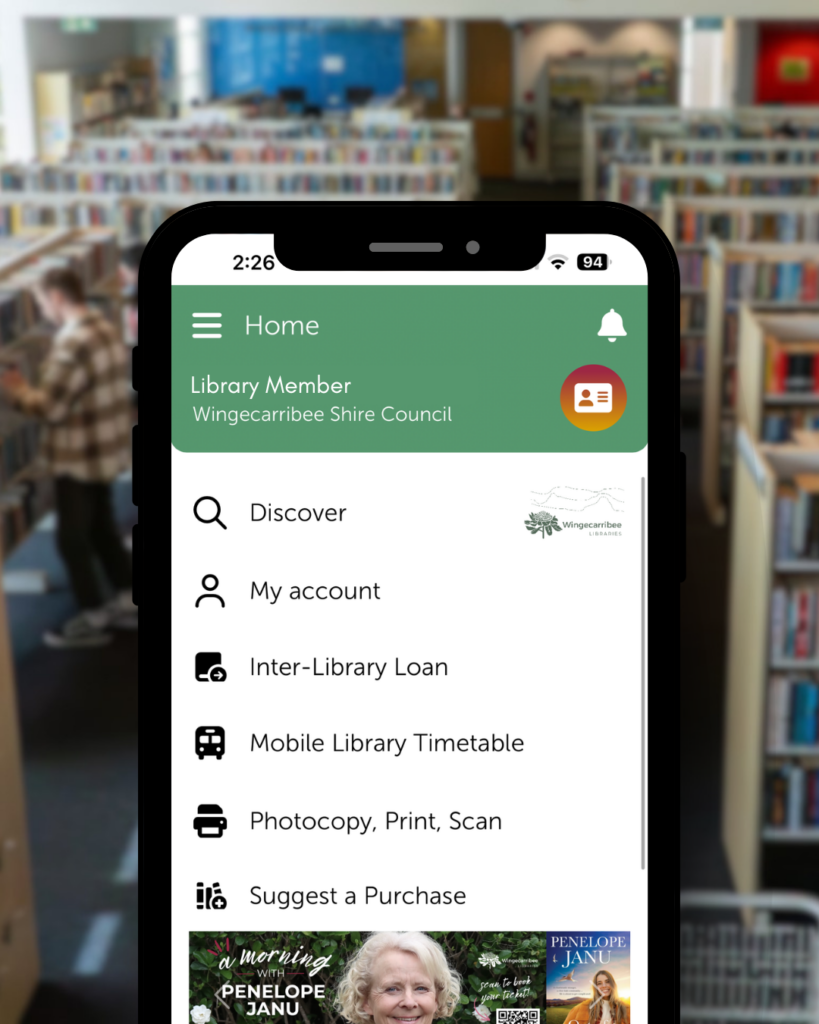
Spydus Library App on a phone screen with library shelves in the background.

Download the app here:

Download Spydus Library on the App Store for iPhone, iPad, or iPod. Get Spydus Library on Google Play for Android phones and tablets.

Also in this section

What are you looking for?