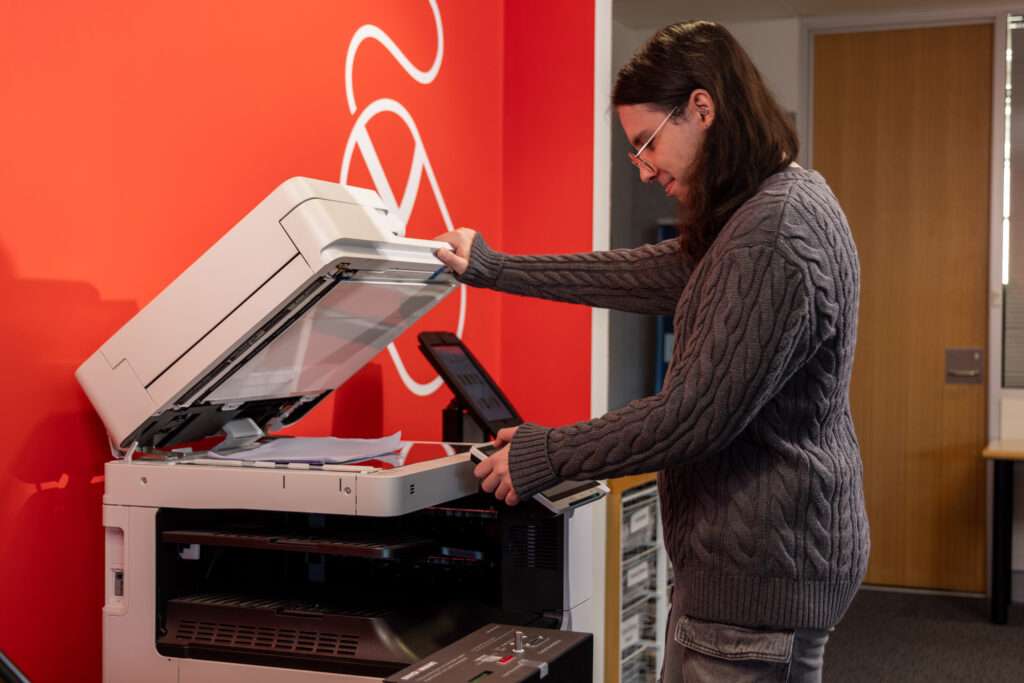
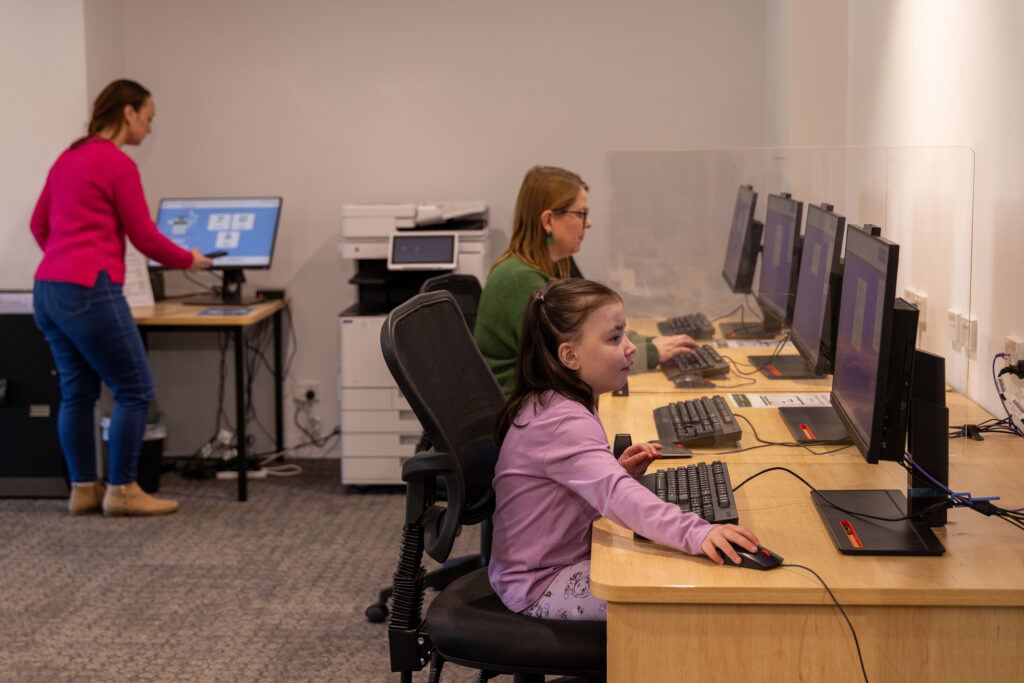
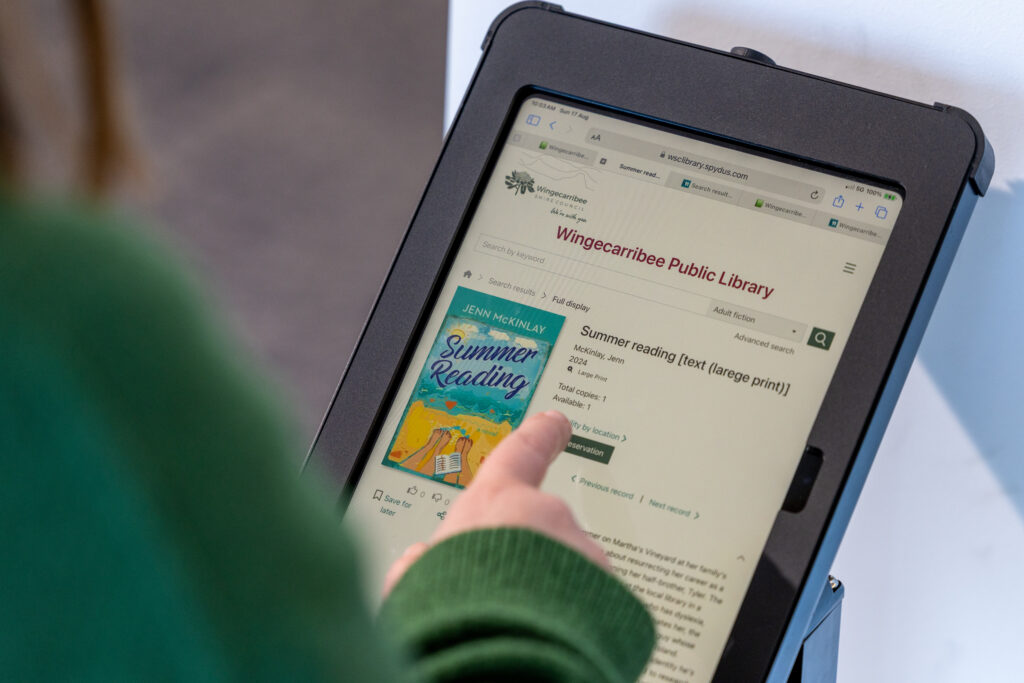
You can photocopy, print and scan at all Wingecarribee Libraries branches. If you need help using the printer or scanner, just ask our friendly staff – we’re happy to assist!
What's available
- A4 and A3 black & white and colour photocopying and printing
- Free scanning to USB (please bring your own USB)
- Mobile printing with Princh
- Cash only
Print from your own device
Our mobile printing service allows you to upload documents and photos from your phone, tablet or computer to a printer at one of our libraries. Then simply visit your selected library, pay for your printing and collect your documents. Our printers can only accept cash.
Select the location for your printing and upload your documents to print:
How to print from a laptop or desktop computer
- When printing remotely or at the library: select your library location below and click on the link to upload your document(s).
- Upload your document(s).
- Adjust the settings.
- Enter your email address.
- Proceed to the print release terminal to pay for and finalise your print job.
- If you are paying with cash or coins, go to the library’s Self Service Station and enter your email address to release your print job.
Printing from your mobile phone or a tablet
1. When printing at the library: scan the QR code near the printer.
2. Upload your document(s).
3. Adjust the settings.
4. Enter your email address.
5. Proceed to the print release terminal to pay for and finalise your print job.
Processed print jobs will be held in the printing queue until the end of the day.